Upload EXE, MSI, ZIP, DMG, or PKG app to the Apps Library
Prerequisite
The process for uploading MSI, EXE, ZIP, DMG, and PKG files is fairly simple. You can upload the app file to the Apps Library, or point to the file location using a URL path. Next, specify the applicable parameters, and the app is ready to go.
These types of files are installed on managed KACE Cloud devices using the KACE Cloud Agent. Apps installed using this way have access to a full set of KACE Cloud features, such as patching. This is indicated by the KACE Cloud Agent icon  in the Add New menu and also in the Apps Library after uploading the app.
- Go to the Libraries tab.
- Click the Apps icon.
- Choose Add New > Uploaded App (.msi, .exe, .zip, .dmg, .pkg).
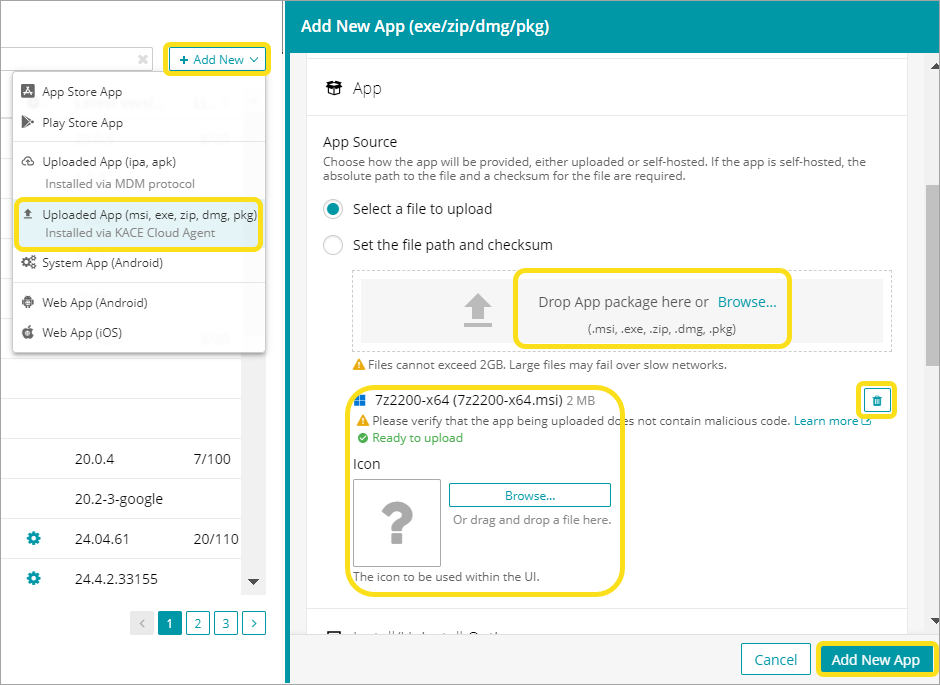
- In the Add New App view that appears on the right, provide following app details.
- Name and Version: The app's name and version, You can use this information to uniquely identify the app in KACE Cloud. See Name and Version for details.
- Description: A brief description of the app. This field is optional.
- In the App section, indicate how you want to add the file to the Apps Library by selecting one of the following options:

IMPORTANT: ZIP file are limited to a maximum of 8 Gb, even if they are hosted externally.
- Select a file to upload: Select this option if the app file is stored on your local drive. Then, browse to the app file in the indicated area.
- Icon: Browse to the app's icon image file, if needed. The image is used within KACE Cloud only. It does not override the app icon on the device itself. There are no limitations to the graphic size, and if needed, the image will be automatically re-sized to fit the available space.
- Browse: Click to navigate to the app's installation file, or drop the file in the indicated area.
Set the file path and checksum: Select this option if the app file is hosted on a network location. Then provide a URL path and the app file's checksum. Most custom-hosted apps provide a checksum, however for those that do not, you can generate it.
The view refreshes, displaying only the options associated with the selected file type. Other fields are hidden. For example, if you select a DMG file, the Return Codes field specific to Windows EXE and ZIP files does not appear in the view.
Also, attempting to navigate away from the upload view at any point shows a message, indicating that the file upload is in progress and that proceeding to do so cancels the upload.
- Select a file to upload: Select this option if the app file is stored on your local drive. Then, browse to the app file in the indicated area.
- In the Install/Uninstall Options, provide the following information:
- Executable Path: ZIP and EXE files only. If you are uploading an EXE file, this field is automatically populated with the EXE file name. If you are uploading a ZIP file, type path to the file that should be run within that ZIP file folder structure.
- Command Line Parameters: ZIP and EXE files only. Specify the full command line for installing the app, including all options required for silent installation.
- Return Codes: ZIP and EXE files only. Type one or more comma-separated return codes that indicate successful installation. The default value is zero '0'.
- Timeout in minutes: Specify the number of minutes the installer can wait for input before it times out.
- Retry attempts: Specify the number of attempts the installer can restart after a timeout.
- Uninstall before update: Select this check box if you want to always remove the old version of the app before installing a new one.
- Command Line Parameters for Removal: ZIP and EXE files only. Specify the full command line for deleting the app from a target device, including all options required for silent removal.
- In the Inventory Identifier area, select the parameter that you want to use to uniquely identify the app:
- Name and Version: Select this option if you want KACE Cloud to identify app using the provided Name and Version.
- Verification ID: Select if you want KACE Cloud to identify the app during inventory:
- Windows apps: Use the app's Registry Key
- macOS apps: Use the app's Bundle ID.
- Do not verify this app: Select if you want to prevent the app from being verified. Choosing this option prevents the app from being uninstalled by KACE Cloud.